In this guide, we will walk through the end-to-end process of setting up and managing your infrastructure as code using the Strata Cloud Manager (SCM) Terraform Provider. We will begin with the prerequisites—creating a service account and securely configuring your provider block—before initializing your Terraform workspace.
Once the foundation is set, we will explore the core lifecycle operations: Create, Read, Update, and Delete (CRUD). You will learn how to deploy resources individually or in bulk, as well as how to manage and destroy them safely. Finally, we will cover how to bring existing infrastructure under Terraform management using an import command, and we will wrap up with a troubleshooting section to help you resolve common issues.
Create a Service Account
To get started with creating your Terraform Environment, you must first create a Service Account. This account will provide the Client ID and Client Secret required for Terraform to authenticate and provision your resources securely.
To create a service account, follow these steps:
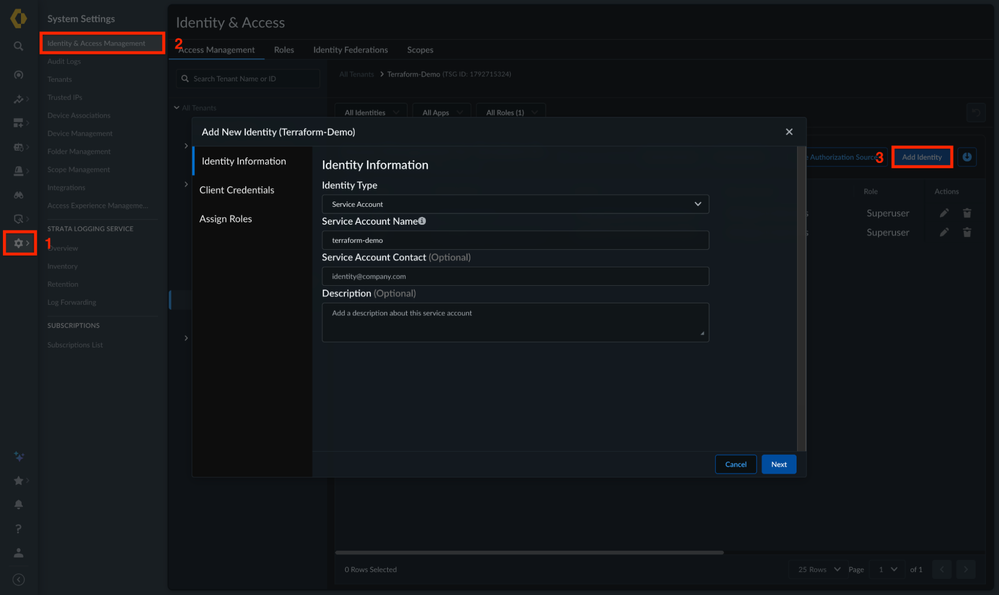
- Navigate to System Settings > Identity & Access Management.
- Click on Add Identity.
- Select Service Account as Identity Type, and complete the required fields. Then, click Next.
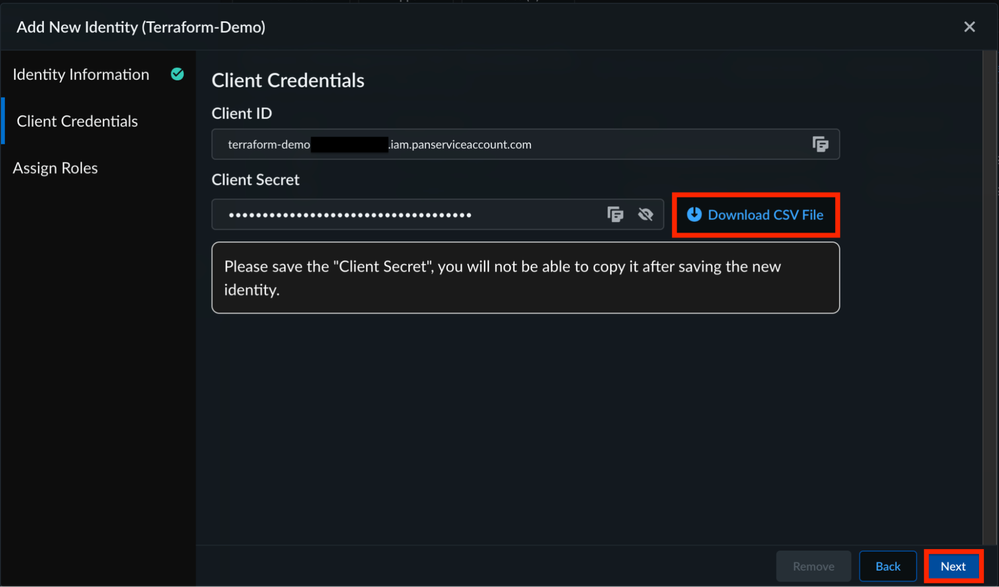
- Download and Save the Client Credentials. Click Next.
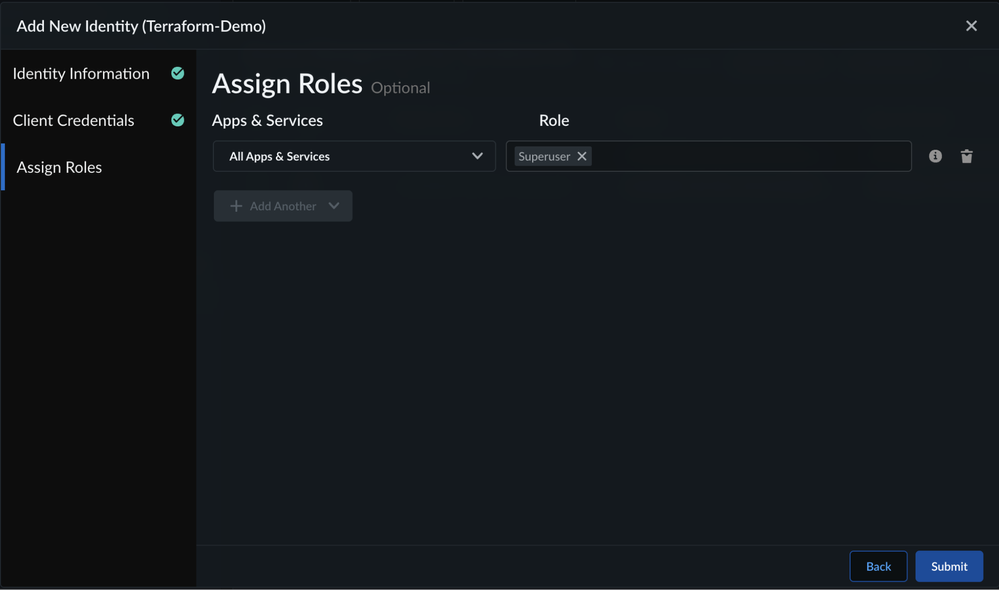
- Assign a role to your service account, ensuring you grant only the minimum permissions necessary for your needs. Then, click Submit.
Provider Block Configuration
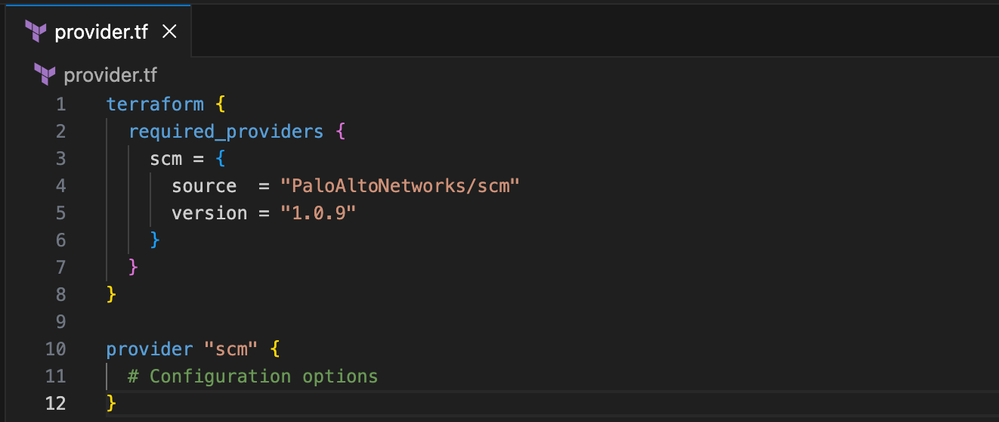
- Create a provider.tf file in your local project directory.
- Copy the Configuration Block from the SCM Terraform Registry. This defines the provider source and version, while providing a placeholder for your connection details.

- Paste the block into your provider.tf file.
Populate the SCM Provider Block
Next, populate the SCM Provider Block with your specific environment details:
- host: The SCM API endpoint.
- client_id: Your Service Account ID.
- client_secret: Your Service Account Secret.
- tsg_id: Your Tenant Service Group ID.
provider "scm" {
 host          = "api.sase.paloaltonetworks.com"
 client_id     = "<YOUR_CLIENT_ID>"
 client_secret = "<YOUR_CLIENT_SECRET>"
 scope         = "tsg_id:<YOUR_TSG_ID>"
}
Workplace Initialization
Once your provider is configured, save the file and run terraform init to initialize your Terraform workspace for execution. This command:
- Performs Plugin Discovery by identifying required providers (e.g., SCM), downloading the necessary binaries, and storing them in the .terraform/ folder.
- Sets up the Backend by initializing the state storage (local or remote) and validating communication with the backend.
- Installs Modules by downloading and caching all external modules defined in the code.
With your environment now initialized, you’re ready to begin building your infrastructure. Consult the SCM Terraform Registry Documentation for supported resources, schema definitions, and code examples to help you write your Terraform configuration.
Next, we’ll walk through the core CRUD operations, starting with resource creation.
CREATE
Deploying infrastructure with Terraform is purely declarative: you define what your security environment should look like, and Terraform figures out how to build it.
Method A: Individual Resource Deployment
This method uses a single, dedicated Terraform resource block to explicitly define the exact configuration of one specific object:
- Define the Component: Create a dedicated resource block (for example, scm_tunnel_interface) in your .tf file, and populate it with the required attributes according to the schema outlined in the SCM Terraform Provider.
# Creating a New Folder
resource "scm_folder" "scm_new_folder" {
 name        = "TF-Slide-Demo"
 parent      = "ngfw-shared"
 description = "Managed by Terraform"
}

# Creating a Tunnel Interface
resource "scm_tunnel_interface" "scm_tunnel_interface" {
 name    = "$Tunnel-Interface"
 comment = "Managed by Terraform"
 folder  = scm_folder.scm_new_folder.name

 ip = [
   {
     name = "200.20.20.100/32"
   }
 ]
}
- Preview the Execution Plan: Run terraform plan to preview the changes Terraform will make. This command compares your configuration with the current state of your infrastructure and produces a detailed execution plan. In the output, you’ll see the expected final state of each resource, along with a clear breakdown of what Terraform intends to create, update, or remove:
+ indicates resources that will be created
~ indicates resources that will be modified
- indicates resources that will be deleted
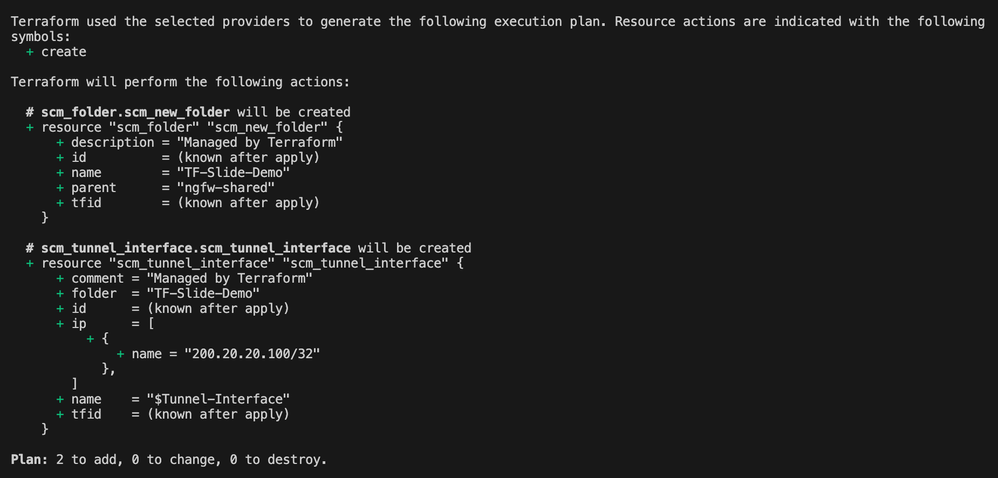
- Provision to SCM: Execute terraform apply to instantly push the finalized configuration directly to SCM.

Method B: Bulk Creation
Provisioning multiple resources of the same type can quickly become tedious, whether configuring them via the UI or writing separate Terraform blocks for each one. Instead, you can streamline your workflow by leveraging a single, repeatable resource block. By pointing Terraform to an external data source (like a CSV file), it will automatically loop through your data and generate a new resource for each item. This allows you to scale effortlessly without cluttering your configuration files.
- Create an External Data Source: Create an external data source file (e.g., tags.csv) containing the individual objects you want to provision.
In this guide, we will use a CSV file as the data source. When using a CSV, your column headers act as the exact keys for your Terraform configuration. Terraform parses each row into a map of key-value pairs, which can then be referenced within your resource block using each.value.<header_name>.
|
Folder
|
Name
|
Color
|
|
SCM-TF-Demo
|
ENV-PROD
|
Green
|
|
SCM-TF-Demo
|
ENV-DEV
|
Yellow
|
|
SCM-TF-Demo
|
DATA-SENSITIVE
|
Red
|
|
SCM-TF-Demo
|
TEAM-NETWORK
|
White
|
|
SCM-TF-Demo
|
DEPT-FINANCE
|
Lavender
|
|
SCM-TF-Demo
|
APP-DATABASE
|
Orange
|
|
SCM-TF-Demo
|
TIER-FRONTEND
|
Blue
|
|
SCM-TF-Demo
|
EC-COMPLIANT
|
Maroon
|
|
SCM-TF-Demo
|
GEO-US-EAST
|
Cyan
|
|
SCM-TF-Demo
|
PROJECT-PHOENIX
|
Purple
|
- Load the CSV in Terraform: To load the CSV file into Terraform, use a locals block combined with two built-in functions: file() to read the raw text, and csvdecode() to parse it into a list objects Terraform can natively understand.
locals {
 tags = csvdecode(file("${path.module}/csv_files/tags.csv"))
}
- Construct the Repeatable Resource Block: In your configuration file, write a single resource block utilizing for_each to loop over the decoded data.
The name column serves as the unique key, so Terraform can track each resource individually. Each attribute is populated using each.value.<column_header>. Here, each.value represents the current row being processed, so each attribute directly maps to a column in your data source.
# Creating Tags
resource "scm_tag" "scm_tags" {
for_each = { for tag in local.tags : tag.name => tag }
folder = each.value.folder
name = each.value.name
color = each.value.color
depends_on = [ scm_folder.scm_new_folder ]
}
- Preview the Changes: Run terraform plan to preview the changes Terraform will make. In the output, you will see the expected final state of each resource, with all variables resolved from the input data.

- Provision to SCM: Run terraform apply to push the finalized configuration directly to SCM.

- Scale With Ease: To add more resources later, simply append new items to your external data source. When you re-run terraform apply, Terraform will instantly detect and provision the new entries without requiring you to alter a single line of your .tf scripts
READ
Use Terraform Data Sources to securely pull live configuration data directly from your SCM environment without leaving your code editor. This approach provides several key benefits:
- Increase Visibility: Gain immediate, formatted visibility into your existing infrastructure directly within your codebase.
- Enable Dynamic Inputs: Leverage the retrieved output, such as Object IDs, as dynamic variables to feed into other resource blocks for complex builds.
- Detect Configuration Drift: Compare this live data against your expected state to easily identify unmanaged resources or manual changes made directly in the UI.
Ultimately, integrating Data Sources into your workflow ensures your deployments remain accurate, highly scalable, and perfectly synchronized with the real-time state of your network.
- Consult the Registry: Search for the data source you need in the SCM Official Terraform Registry. For this example, we'll use scm_tunnel_interface_list.

- Configure the Data Source: Copy the data source block from the registry documentation and paste it into your configuration file. It includes the data source and an output block to display the retrieved data.
Update the folder argument to match your target SCM folder, and adjust the output block to surface the specific fields you need.
# Fetch a list of all tunnel interfaces
data "scm_tunnel_interface_list" "all_tunnel_interfaces" {
 folder = "TF-Slide-Demo"
}

# Output the raw list of all tunnel interfaces
output "scm_tunnel_interface_list" {
 description = "A list of all tunnel interfaces from the 'TF-Slide-Demo' folder."
 value       = { for interface in data.scm_tunnel_interface_list.all_tunnel_interfaces.data : interface.name => interface }
}
- Execute the Code: Run terraform apply to display the output.

UPDATE
Once a resource is managed by Terraform, updating it is straightforward: simply modify the attributes in your .tf file and apply the changes. This allows you to seamlessly push updates to your environment—for example, to correct a misconfiguration or adjust a policy—without disrupting your wider infrastructure.
- Edit the Configuration: Open your .tf configuration files and modify the specific resource attributes you need to change (e.g., fixing the IP address of a tunnel interface).
- Preview Changes: Run the terraform plan command and look for the tilde symbol (~) in the output. This symbol indicates that Terraform will intelligently modify the existing resource in-place rather than completely destroying and recreating it.

- Apply the Changes: Execute terraform apply to securely push the updates to your live SCM environment.

DELETE
To remove a resource, such as an outdated security rule, from your live environment, delete its configuration block from your Terraform script and run terraform apply. Terraform will intelligently reconcile the change, deleting only what was removed while leaving the rest of your infrastructure unchanged.
- Remove the Configuration: Open your .tf file and delete the resource block(s) you wish to destroy in your live environment.
- Preview the Deletion: Run terraform plan to verify what Terraform intends to destroy. Resources flagged for deletion are marked with a red minus sign (-).

- Apply the Change: Run terraform apply to remove the resource(s) from your SCM environment.
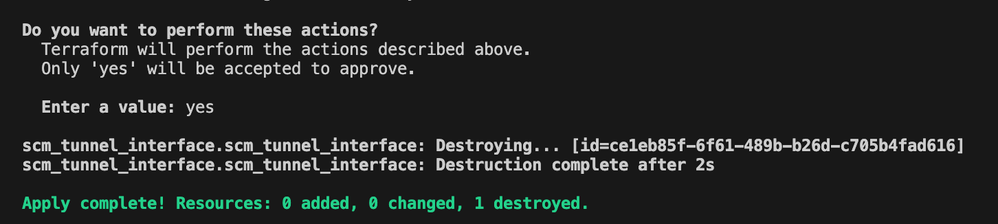
Note: To decommission an entire environment at once, use terraform destroy. This will systematically remove every resource tracked in your state file, leaving a clean slate.
IMPORT
When a resource is created outside of Terraform, such as a snippet object using the SCM UI, it exists in your live environment but remains completely invisible to Terraform. This gap leads to configuration drift, where your declared configuration no longer matches the actual infrastructure, increasing the risk of unexpected changes during future deployments.
The terraform import command resolves this by bringing existing resources under Terraform management, aligning your state with reality and reestablishing your configuration as the single source of truth.
To import an object from SCM into your Terraform state, you will need its Unique ID. You can retrieve this ID using two different methods: natively through a Terraform Data Source, or by querying the API using Postman.
Method A: Using a Terraform Data Source
Using a data source is the native way to fetch information about existing infrastructure directly within Terraform.
- Create the Configuration File: In your Terraform workspace, create a new file (e.g., scm_snippet_list.tf)
- Consult the Registry: Search for the data source you need in the SCM Official Terraform Registry. For this example, we'll use scm_snippet_list.

- Configure the Data Source: Copy the data source block from the registry documentation and paste it into your configuration file. It includes the data source and an output block to display the retrieved data.
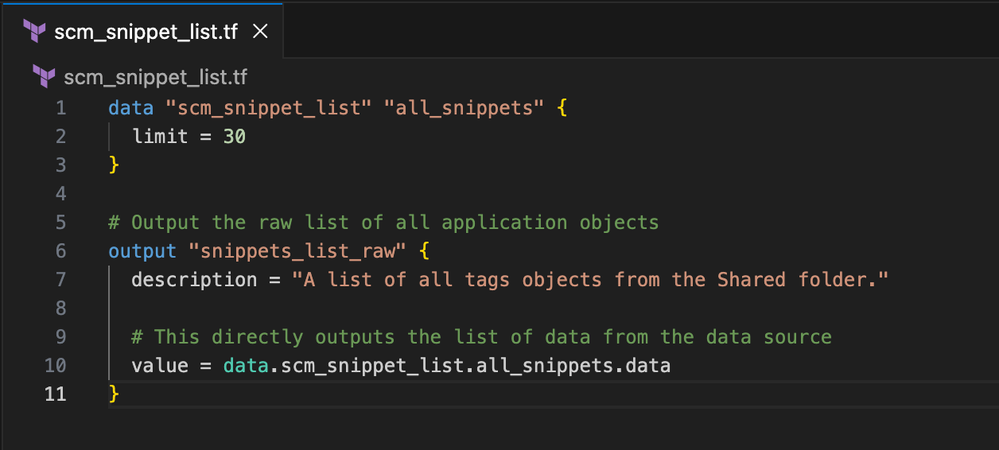
Tip: You can increase the limit = 10 value if you have a large number of snippets and need to retrieve more results.
- Execute the Code: Run terraform apply to display the output.

- Copy the ID: Once the command completes, locate your target snippet within the output and copy the corresponding ID value.

Method B: Using Postman
If you prefer to find the ID outside of Terraform, you can query the API directly using a tool, like Postman.
- Create a New Request: Open Postman and create a new HTTP request. Set the HTTP method to GET.

- Enter the Endpoint: In the URL field, enter the API endpoint used to retrieve the desired object. For full details on available endpoints, refer to the SCM API Documentation.

- Configure Authorization: Navigate to the Authorization Tab and enter your Bearer Token to authenticate your request.
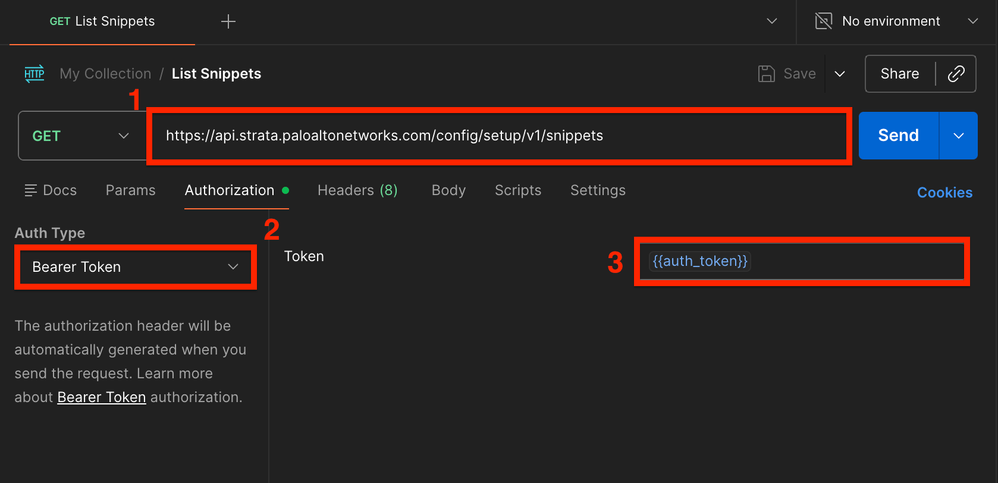
- Send the Request: Click the Send button to execute the API call.

- Copy the ID: Review the returned JSON response, locate the target snippet in the list, and copy its corresponding ID value.

Perform the Import Command
Once you have the ID, you're ready to bring the resource into your Terraform state.
- Prepare the Configuration: Create an empty resource block in your .tf file to serve as a placeholder.
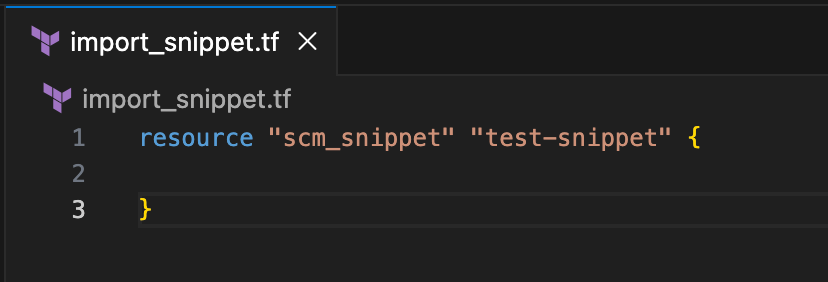
- Execute Import Command: Run terraform import [Resource Type].[Resource Name] [Scope Name]:::[ID of Object] to pull the existing object into your state.

Common Issues and Helpful Tips
Common Errors:
- 401 Unauthorized: Your credentials could not be verified. Double-check that your Client ID, Client Secret, and TSG ID) are correct in your provider configuration, and confirm the service account is active in your tenant.
- 403 Forbidden: The service account lacks the required role. Check tenant IAM permissions.
- Resource Already Exists: Terraform is attempting to create a resource that already exists in SCM. This typically happens when a resource was created outside of Terraform. Use terraform import to bring it under Terraform management rather than recreating it.
- Attribute Errors: Occurs when a value in your .tf file is invalid or unsupported by the provider, such as a missing required argument or an out-of-range value. Refer to the SCM Terraform Registry Documentation to verify valid attributes and acceptable values.
Tips:
- Run terraform plan Before terraform apply: The plan output shows exactly what Terraform intends to create, update, or destroy before any changes are made.
- Use terraform fmt to Keep your Code Clean: Running terraform fmt automatically formats your .tf files. Consistent formatting makes code easier to read, review, and collaborate on.
- Use depends_on to Control Resource Order: If a resource depends on another being created first, such as a security rule referencing an address object, use depends_on to explicitly declare that relationship and prevent race conditions during apply.
- Ex. depends_on = [scm_address_object.my_address]
- Remove a Resource from State Without Deleting It: If you want Terraform to stop managing a resource without deleting it from your live environment, use: terraform state rm <resource_type>.<resource_name>. This command removes the resource only from Terraform’s state file. The actual resource in SCM remains unchanged and continues to exist in your environment. It is simply no longer tracked or managed by Terraform.
- Don't Edit the State File Manually: The .tfstate file is Terraform's source of truth. Editing it by hand can corrupt your state and cause unpredictable behavior. Use Terraform CLI commands (e.g., terraform state rm, terraform import) to manage state safely.






